Messaging Usage
Mosaic uses the asynchronous Messaging concept for connection and communication between parts of a service or different services.
Customizable service implements messaging for triggering processes within the service. Mosaic-based solutions can also send commands to Mosaic Managed Services and expect event messages in response.
This guide will showcase how new messaging endpoints can be enabled in the Mosaic Customizable solution and how to establish communication with Managed Services.
Enable Messaging in Customizable Solution
In this section of the guide, we will look at how to extend Mosaic Customizable
service to accept message command and respond with event messages.
RabbitMQ Configuration
The Mosaic platform uses RabbitMQ as the message broker. The Mosaic Admin Portal provides a convenient way to configure RabbitMQ for each environment.
- Log into the Mosaic Admin Portal
- Create a new environment and wait till the Environment Initialization Status is set to Completed
- From Environment details page, navigate to Service Configuration page
- Under section Hosting Service, select RabbitMQ
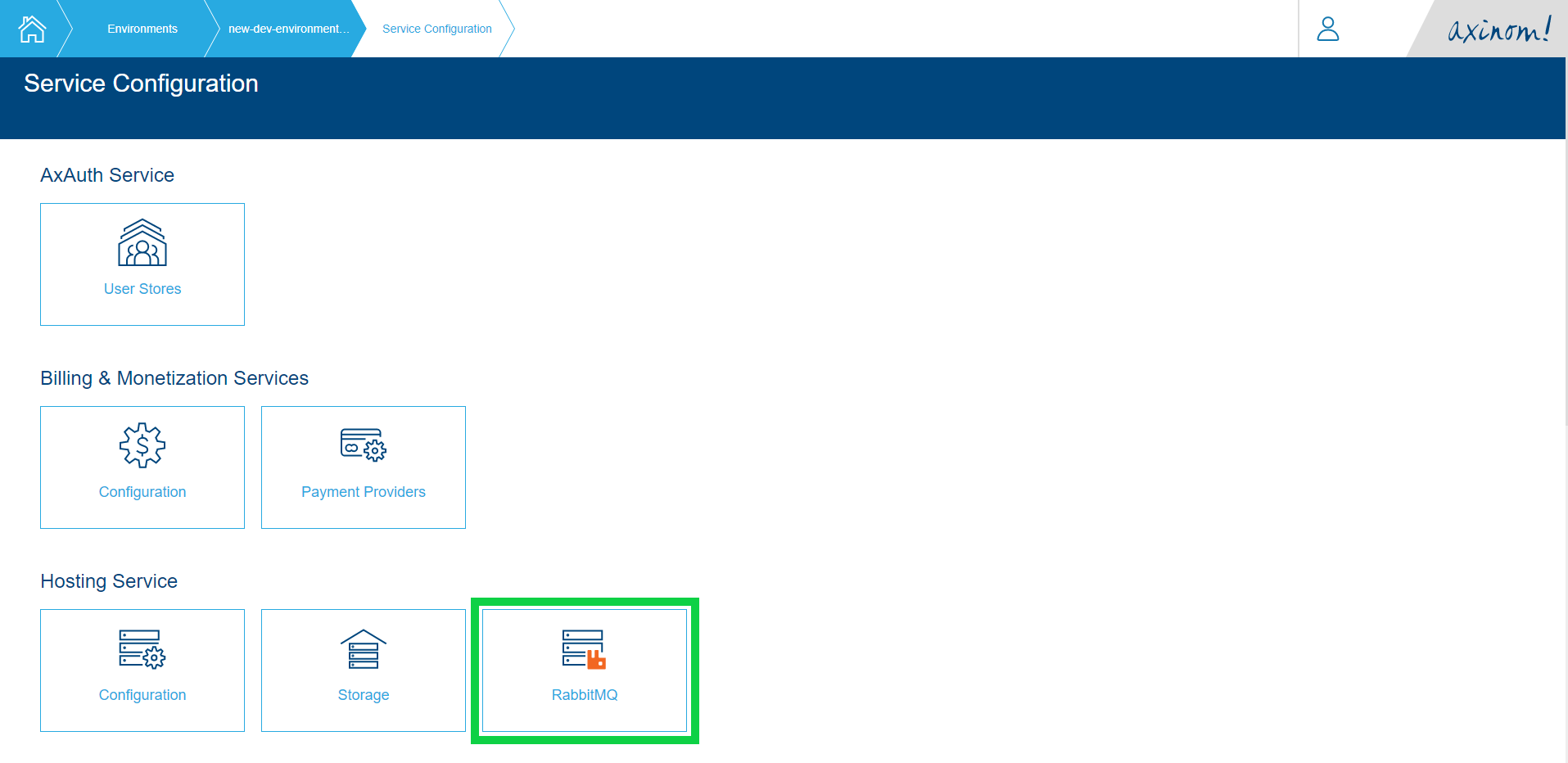
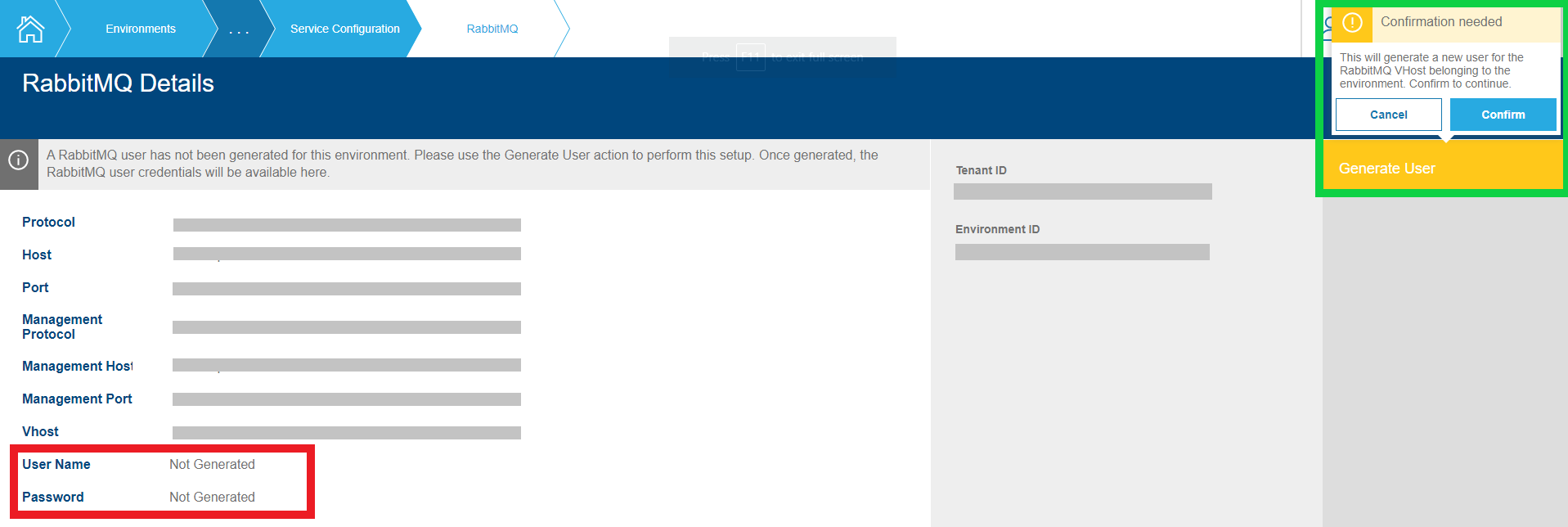
- RabbitMQ Details page provides details on connection settings. The newly created environment will be missing credentials for connecting to RabbitMQ.
- Select Generate User action button and confirm selection to generate login credentials.
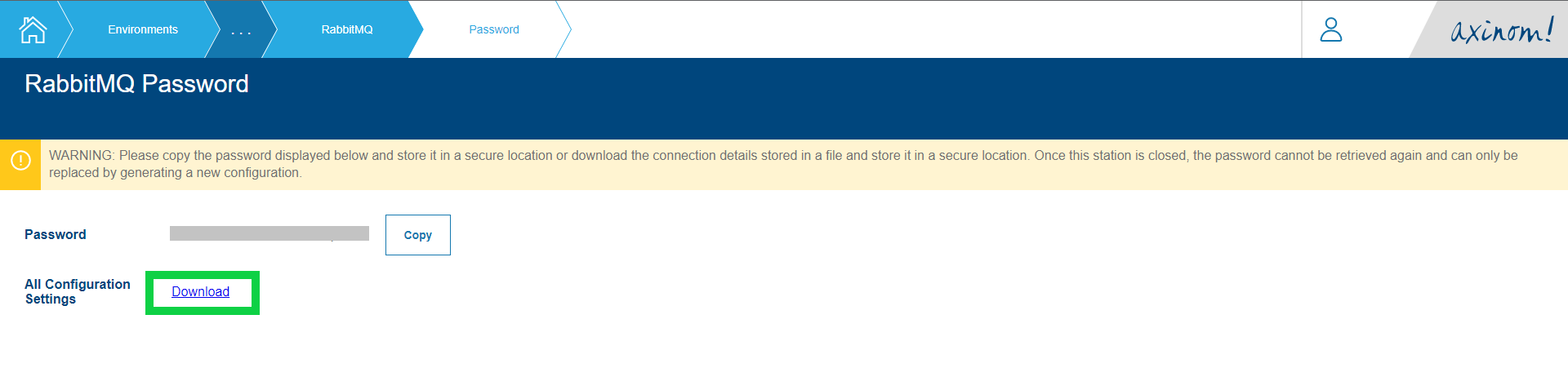
- After generation of new user is complete, configuration file with RabbitMQ connection credentials can be downloaded.
Messaging Contracts & Library
The general messaging approach and the used technology is defined in the Messaging page. Please read this document first to learn about the used concepts and approaches.
Library
Every project that is based on Mosaic should have a single "messages" library.
The library contains all Messaging contracts and generated code. The directory
layout should be found on the following structure:
<root>
└── schemas
    └── payloads
        └── <Context A>
        │   └── commands
        │     └── <...>-command.json
        │   └── events
        │     └── <...>-event.json
        │   └── <context-a>-asyncapi.yml
        └── <Context B>
            └── ...
Message payloads are grouped together by their origin (e.g. media-service) or context
(e.g. publishing). It is suggested to further group the message schemas into
event and command subdirectories if there are quite a few of them.
Each context should contain exactly one AsyncAPI document in JSON, or YAML formats.
The messages library should have dependencies on two Mosaic packages:
- @axinom/mosaic-cli - provides a dedicated command for generating code from Messaging contracts.
- @axinom/mosaic-message-bus-abstractions - contains abstractions for generated code.
JSON Schema
Messages are defined using JSON schema. All schemas that represent either an
event or a command should be suffixed with -event or -command, respectively.
This signals the code generator what files to convert to TypeScript. You can use
other files (e.g. common.json) to store reusable definitions. It is preferable
to scope and keep each message definition as self-contained as possible.
The following two message payload definitions are used to define a
CreateExampleCommand as the command message payload and a
ExampleCreatedEvent for the event message payload.
{
  "$schema": "http://json-schema.org/draft-07/schema#",
  "type":"object",
  "title": "create_example_command",
  "description": "Create example command schema.",
  "additionalProperties": false,
  "required": ["title", "count"],
  "properties": {
    "title": {
      "type": "string",
      "description": "The title of the example entity."
    },
    "count": {
      "type": "integer",
      "description": "Some example count."
    }
  }
}
{
  "$schema": "http://json-schema.org/draft-07/schema#",
  "type":"object",
  "title": "example_created_event",
  "description": "Example created event schema.",
  "additionalProperties": false,
  "required": ["example_id"],
  "properties": {
    "example_id": {
      "type": "integer",
      "description": "The entity ID of the example stored in the database."
    },
    "message": {
      "type": "string",
      "description": "The creation message."
    },
  }
}
Best practices and conventions on how to define the schemas:
- Supported JSON Schema versions: Draft-4, Draft-6 and Draft-7
- Use lower snake case for names (properties, definitions, etc.), e.g.,
video_stream. - All schemas, properties and definitions should have
typeset. - All top-level schemas, properties, and definitions should have a
descriptionset to something useful. - Top-level schemas and definitions should have a
titleset. During code generation title is used for naming the TS interface. Iftitleis not set, the interface name will be autogenerated in the formatanonymous-schema-{random_number}. - For quality code generation, try to avoid
allOf,patternPropertiesand alike JSON schema definitions - npm package "@asyncapi/modelina" does not support it yet.
AsyncAPI Specification
Mosaic uses AsyncAPI specification to describe the messaging endpoints.
Messages payloads can be grouped by origin (e.g. media-service) or context (e.g. publishing). Each payload group should have only one AsyncAPI specification file that describes RabbitMQ endpoints only within the said group.
AsyncAPI Specification: 'example-asyncapi.yml'
asyncapi: 2.0.0
info:
  title: Example Service
  version: '1.0.0'
  description: |
    Example Management
# Mosaic extension for AsyncAPI specification, used to define service id. If not defined, as service id will be used info.title in lower-kebab-case
x-service-id: ax-service-example

channels:
  # events
  'example.create': # RabbitMQ routing key
    bindings:
      amqp:
        queue:
          name: example:create # RabbitMQ queue name
    publish:
      message:
        # reference to message definition under `components/messages` section of document
        $ref: '#/components/messages/example-create-command'
  'example.created': # RabbitMQ routing key
    bindings:
      amqp:
        queue:
          name: example:created # RabbitMQ queue name
    publish:
      message:
        # reference to message definition under `components/messages` section of  document
        $ref: '#/components/messages/example-created-event'
components:
  messages:
    example-create-command:
      contentType: application/json
      payload:
        # reference to the location of the file with JSON schema for the message payload
        $ref: 'commands/create-example-command.json'
    example-created-event:
      contentType: application/json
      payload:
        # reference to the location of the file with JSON schema for the message payload
        $ref: 'events/example-created-event.json'
AsyncAPI specification conventions:
- Supported AsyncAPI specification versions are 2.0.0 and above.
- Sections
asyncapi,infoandchannelsare required sections and should be always present and filled in the document. - Special section
x-service-idin specification document should be set to the id of origin service. - Payload JSON schema should be referenced under
components/messagessection of the document. - Defining RabbitMQ routing key should be used as channel name and queue name
should be defined under
{routingkey}/bindings/amqp/queue/name.
Code Generation
The template projects come with tooling support out of the box that lints the written contract files. JSON schemas and the AsyncAPI specification are used to generate TypeScript definitions from them.
Code generation from contracts can be triggered by running the Mosaic command
msg-codegen in the messages solution root folder:
yarn mosaic msg-codegen
Generated code will be placed under src/generated in "messages" library. The generated output contains three directories:
| Directory | Content |
|---|---|
| config | Contains messaging settings classes with the corresponding RabbitMQ routing key and queue name for each payload. Settings are generated from the AsyncAPI specification. |
| schemas | Contains bundled JSON Schemas, making it possible to easily validate message payloads against schema. |
| types | Contains TS interfaces with payload message models. |
/**
 * Create example command schema.
 */
export interface CreateExampleCommand {
  /**
   * The title of the example entity.
   */
  title: string;
  /**
   * Some example count.
   */
  count: number;
}

/**
 * Example created event schema.
 */
export interface ExampleCreatedEvent {
  /**
   * The entity ID of the example stored in the database.
   */
  example_id: number;
  /**
   * The creation message.
   */
  message?: string;
}
import { MessagingSettings } from '@axinom/mosaic-message-bus-abstractions';

export class ExampleServiceMessagingSettings implements MessagingSettings {
  public static CreateExample = new ExampleServiceMessagingSettings(
    'CreateExample',
    'example:create',
    'example.create',
    'command',
    'example',
  );
  public static ExampleCreated = new ExampleServiceMessagingSettings(
    'ExampleCreated',
    'example:created',
    'example.created',
    'event',
    'example',
  );

  public readonly serviceId = 'ax-service-example';

  private constructor(
    public readonly messageType: string,
    public readonly queue: string,
    public readonly routingKey: string,
    public readonly action: 'command' | 'event',
    public readonly aggregateType: string,
  ) {}

  public toString = (): string => {
    return this.messageType;
  };
}
Message Handler
Having the Messaging contracts defined and all required code generated, it is time to create a handler capable of accepting and processing messages.
For this, navigate to the service and make sure it has a dependency on the
"messages" library. The following Mosaic packages need to be referenced in your service:
- @axinom/mosaic-message-bus — encapsulates the RabbitMQ messaging patterns described in the Messaging concept.
@axinom/mosaic-transactional-inbox-outbox— provides the transactional inbox/outbox pattern for reliable, exactly-once message delivery.
Mosaic uses the transactional inbox/outbox pattern for reliable message processing.
Incoming RabbitMQ messages are first written to an inbox database table by a
RabbitMqInboxWriter. A polling listener then processes them by invoking the registered
handlers. Outgoing messages are stored in an outbox table within the same database
transaction, and a separate polling listener publishes them to RabbitMQ. This guarantees
atomicity and consistency even when a service crashes mid-operation.
All message handlers extend TransactionalInboxMessageHandler and implement the
handleMessage method. The method receives the message payload and a database client
that participates in the same transaction used to acknowledge the inbox record — so any
database writes and outbox stores in the handler are atomic.
export class CreateExampleHandler extends TransactionalInboxMessageHandler<
  CreateExampleCommand,
  Config
> {
  constructor(
    private readonly storeOutboxMessage: StoreOutboxMessage,
    config: Config,
  ) {
    super(
      ExampleServiceMessagingSettings.CreateExample,
      new Logger({ config, context: CreateExampleHandler.name }),
      config,
    );
  }

  override async handleMessage(
    { payload }: TypedTransactionalMessage<CreateExampleCommand>,
    txnClient: ClientBase,
  ): Promise<void> {
    // Save to the database within the handler's transaction
    const exampleId = await insert('example', {
      title: payload.title,
      count: payload.count,
    }).run(txnClient);

    // Store the response event in the outbox within the handler's transaction.storeOutboxMessage(
      String(exampleId),
      ExampleServiceMessagingSettings.ExampleCreated,
      { example_id: exampleId, message: 'Example item created.' } satisfies ExampleCreatedEvent,
      txnClient,
    );
  }
}
For command handlers, it is strongly advised to perform permission checks. Extend
GuardedTransactionalInboxMessageHandler and provide the set of permissions — the caller
needs at least one of them to execute the command:
export class CreateExampleHandler extends GuardedTransactionalInboxMessageHandler<
  CreateExampleCommand,
  Config
> {
  constructor(
    private readonly storeOutboxMessage: StoreOutboxMessage,
    config: Config,
  ) {
    super(
      ExampleServiceMessagingSettings.CreateExample,
      ['EXAMPLES_EDIT', 'ADMIN'], // caller needs at least one of these permissions
      new Logger({ config, context: CreateExampleHandler.name }),
      config,
      {
        tenantId: config.tenantId,
        environmentId: config.environmentId,
        authEndpoint: config.idServiceAuthBaseUrl,
      },
    );
  }

  override async handleMessage(
    { payload }: TypedTransactionalMessage<CreateExampleCommand>,
    txnClient: ClientBase,
    { subject }: GuardedContext,
  ): Promise<void> {
    // subject contains the authenticated user's claims
    // ...
  }
}
Code Registration
To use Mosaic messaging, you need to wire up the inbox/outbox storage, message handlers, RabbitMQ configuration, and polling listeners. This should be done once during application startup.
export const registerMessaging = async (
  app: Express,
  ownerPool: Pool,
  config: Config,
  shutdownActions: ShutdownActionsMiddleware,
): Promise<void> => {
  const logger = new Logger('messaging');

  // 1. Configure and set up the transactional outbox
  const outboxConfig: PollingListenerConfig = {
    outboxOrInbox: 'outbox',
    dbListenerConfig: { connectionString: config.dbOwnerConnectionString },
    settings: getOutboxPollingListenerSettings(),
  };
  const storeOutboxMessage = setupOutboxStorage(outboxConfig, logger, config);

  // 2. Configure and set up the transactional inbox
  const inboxConfig: PollingListenerConfig = {
    outboxOrInbox: 'inbox',
    dbListenerConfig: { connectionString: config.dbOwnerConnectionString },
    dbHandlerConfig: { connectionString: config.dbOwnerConnectionString },
    settings: getInboxPollingListenerSettings(),
  };
  const storeInboxMessage = setupInboxStorage(inboxConfig, logger, config);

  // 3. Create an inbox writer — stores incoming RabbitMQ messages in the inbox table
  const inboxWriter = new RabbitMqInboxWriter(storeInboxMessage, ownerPool, logger, {
    acceptedMessageSettings: [
      ExampleServiceMessagingSettings.CreateExample,
    ],
  });

  // 4. Configure RabbitMQ queues using RascalTransactionalConfigBuilder
  const builders: RascalConfigBuilder[] = [
    // Subscribe to incoming commands — written to inbox via inboxWriter
    new RascalTransactionalConfigBuilder(
      ExampleServiceMessagingSettings.CreateExample,
      config,
    ).subscribeForCommand(() => inboxWriter),
    // Declare the outgoing event queue — published by the outbox polling listener
    new RascalTransactionalConfigBuilder(
      ExampleServiceMessagingSettings.ExampleCreated,
      config,
    ).publishEvent(),
  ];

  // 5. Set up the RabbitMQ broker
  const counter = initMessagingCounter(ownerPool);
  const broker = await setupMessagingBroker({
    app,
    config,
    builders,
    logger,
    shutdownActions,
    components: { counters: { postgresCounter: counter } },
  });

  // 6. Start the outbox listener — polls the outbox table and publishes via the broker
  const shutdownOutbox = setupPollingOutboxListener(outboxConfig, broker, logger, config);
  shutdownActions.push(shutdownOutbox);

  // 7. Register inbox message handlers and start the inbox polling listener
  const handlers: TransactionalMessageHandler[] = [
    new CreateExampleHandler(storeOutboxMessage, config),
  ];
  const [shutdownInbox] = initializePollingMessageListener(
    inboxConfig,
    handlers,
    new TransactionalLogMapper(logger, config.logLevel),
  );
  shutdownActions.push(shutdownInbox);
};
Messaging with Managed Services
Here is described how Customizable Services can communicate with Mosaic Managed Services by using Messaging.
Managed Service Messaging Contracts
Mosaic Managed Services distribute their Messaging Contracts in package @axinom/mosaic-messages.
This package needs to be installed as a dependency in the Customizable Service.
The package contains all supported message payload interfaces and messaging settings classes for all Managed Services.
Sending a Command and Handling the Response
To communicate with a Managed Service, the Customizable Service sends a command via the outbox and processes the response event via the inbox. Both sides use the transactional pattern described above.
To send a command, store it in the outbox. The outbox can be written from anywhere —
a GraphQL handler, REST API endpoint, CLI tool, or message handler — as long as a
database transaction (txnClient) is available:
const serviceAccountToken = await requestServiceAccountToken(config);

await storeOutboxMessage(
  config.serviceId,
  ImageServiceMultiTenantMessagingSettings.DeclareImageTypes,
  {
    service_id: config.serviceId,
    image_types: [
      // ...image type definitions
    ],
  } satisfies DeclareImageTypesCommand,
  txnClient,
  {
    envelopeOverrides: { auth_token: serviceAccountToken.accessToken },
    options: {
      routingKey: ImageServiceMultiTenantMessagingSettings.DeclareImageTypes.getEnvironmentRoutingKey({
        tenantId: config.tenantId,
        environmentId: config.environmentId,
      }),
    },
  },
);
To process the response event, create a handler extending TransactionalInboxMessageHandler:
export class ImageTypesDeclaredHandler extends TransactionalInboxMessageHandler<
  ImageTypesDeclaredEvent,
  Config
> {
  constructor(config: Config) {
    super(
      ImageServiceMultiTenantMessagingSettings.ImageTypesDeclaredEvent,
      new Logger({ config, context: ImageTypesDeclaredHandler.name }),
      config,
    );
  }

  override async handleMessage(
    { payload }: TypedTransactionalMessage<ImageTypesDeclaredEvent>,
    txnClient: ClientBase,
  ): Promise<void> {
    // Handle the response — e.g., store that the image types were correctly registered in the image service
  }
}
Messaging Registration for Managed Services
Add the outgoing command and incoming response event to the builders array in the
registration function alongside any other message configurations:
const builders: RascalConfigBuilder[] = [
  // ...other builders

  // Declare the queue for sending commands to the Image Service
  new RascalTransactionalConfigBuilder(
    ImageServiceMultiTenantMessagingSettings.DeclareImageTypes,
    config,
  ).sendCommand(),
  // Subscribe to the response event — written to inbox via inboxWriter
  new RascalTransactionalConfigBuilder(
    ImageServiceMultiTenantMessagingSettings.ImageTypesDeclared,
    config,
  ).subscribeForEvent(() => inboxWriter),
];
Register the response handler in the inbox polling listener alongside other handlers:
const handlers: TransactionalMessageHandler[] = [
  // ...other handlers
  new ImageTypesDeclaredHandler(config),
];